Creating an automation
This page shows how you can create and manage Automations in the Smartive app. In this example we will create a simple automation that turns on the LED strips in a given room on motion detection.
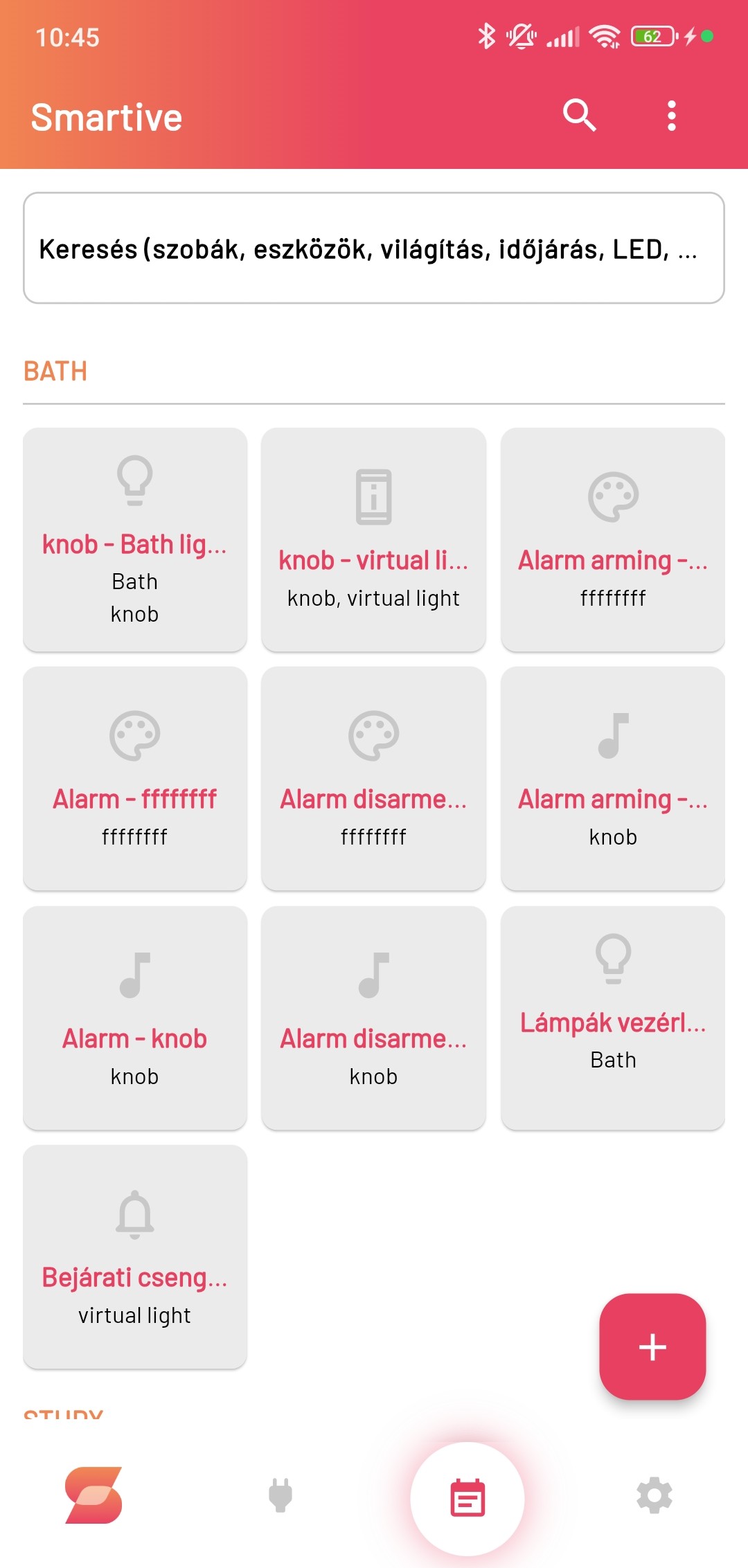
Example: Living-room lighting on motion
- Pressing the + button in the bottom-right corner shows a menu; there we select the Create automation option.
- This navigates us to the Create automations page. Here we can give it a name, for example "Living-room lighting on motion".
- Then in the If section we select the Motion condition option and the desired room. For example "Living room" (Living room). This condition means that if the motion sensor in the living room detects, the action is executed.
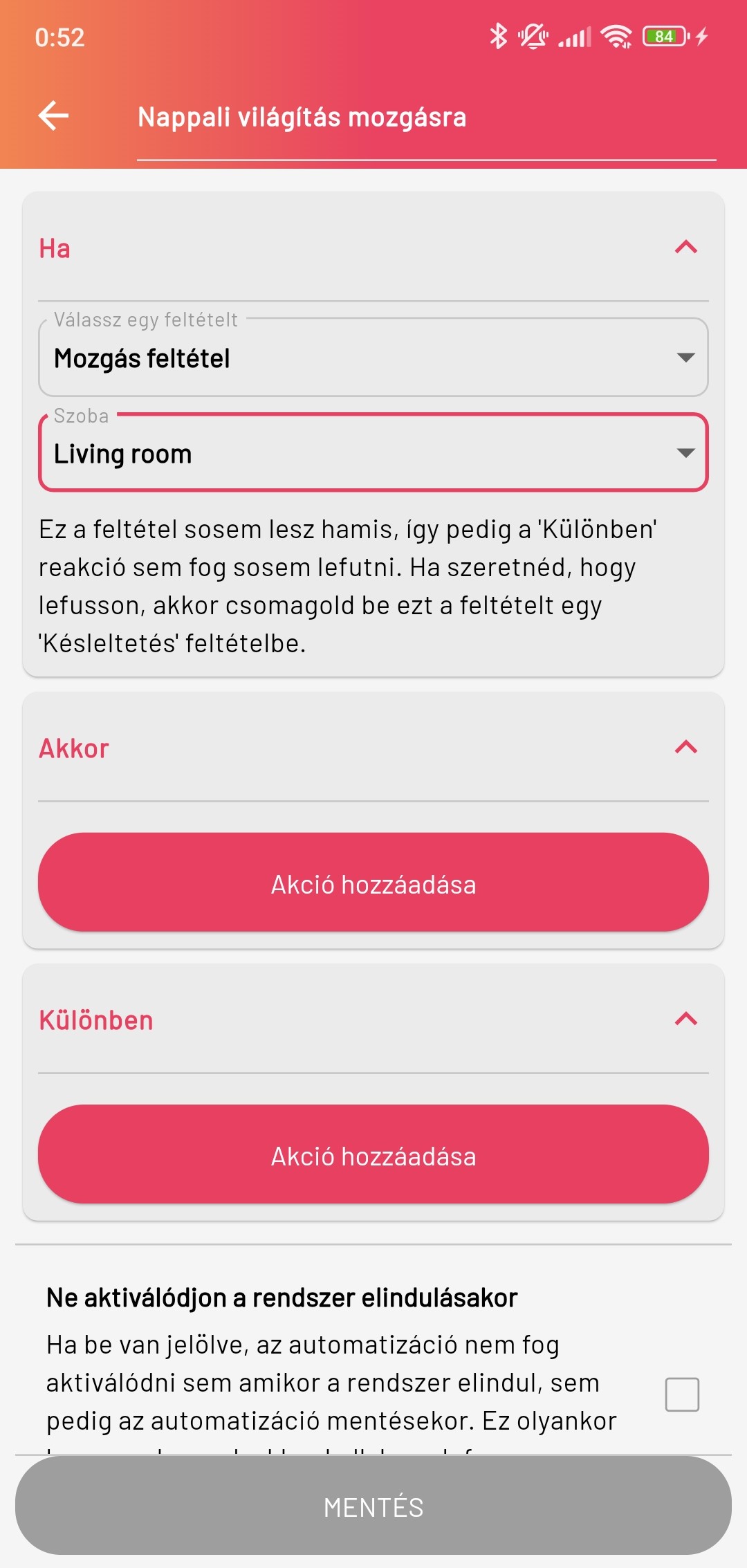
- After we are done with the previous step, in the Then section we select the required reaction, for example the Control LED strip option, then the specific LED strip we want to control.
- In the following step we must select the animation we want to play, which we have already created, for example " LightUp".
- The next option is a checkbox for Show last frame. This means whether the last frame of the animation should stay lit after the animation has finished.
- Then we can set a repeat count, which determines how many times the animation should repeat. For example, if we set 3, the animation will run three times. If we enter a value of 0, it will play infinitely.
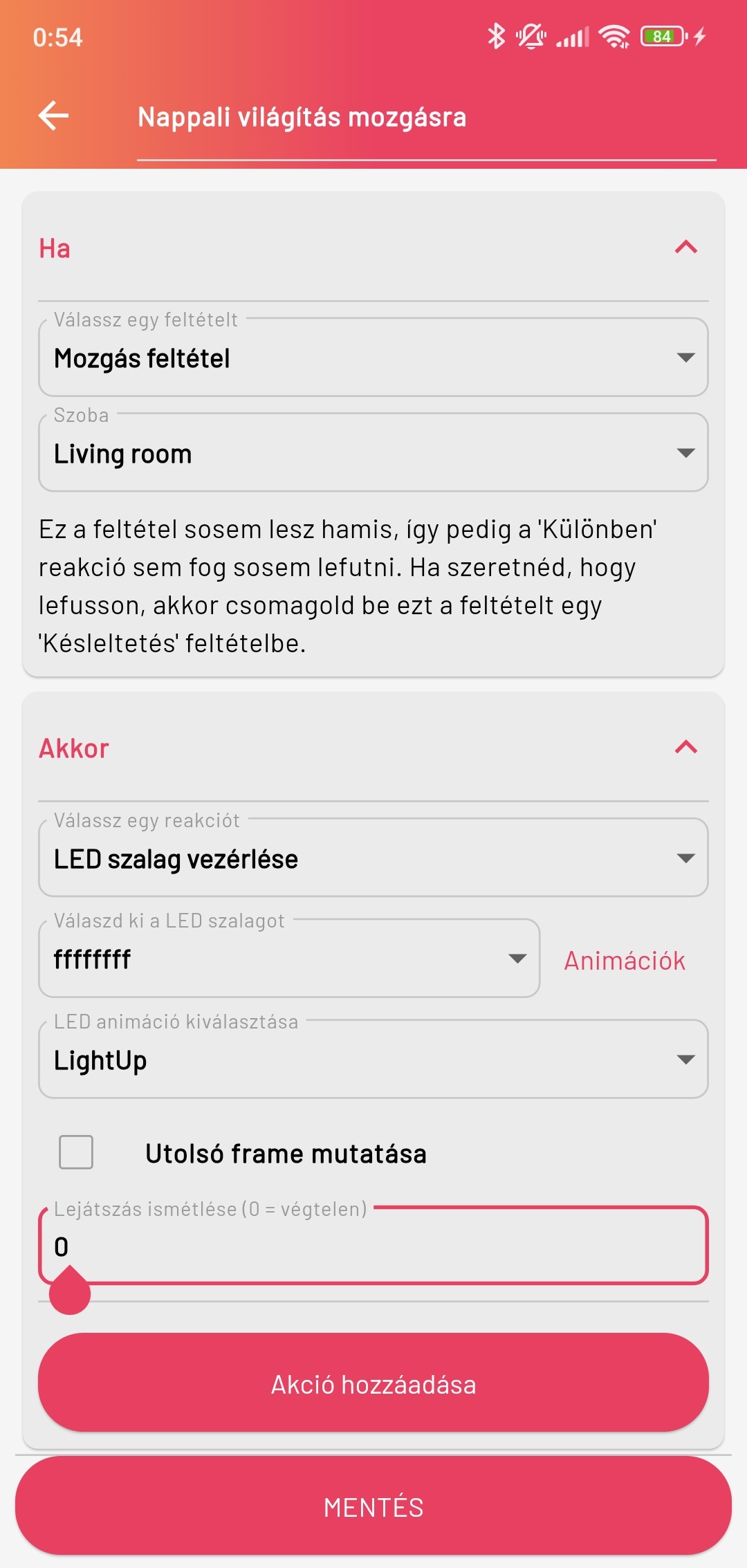
- If we want, we can add another action, similarly to the above.
- In the Else section we can set an alternative action, which is executed if the condition is not met. This is not needed for motion, so we can skip it.
- Checking the Do not activate when the system starts option ensures that the automation does not start automatically when the system starts.
- With the This automation should only be active in automatic mode option we can limit the automation so that it is only active if the room is in Auto mode.
- After that we can save the automation by tapping the Save button.
Example: Creating a doorbell
If we want to create a doorbell for our home in Smartive, we need to follow these steps:
- In the bottom menu bar of the app, tap the Automations menu item.
- Pressing the + button in the bottom-right corner shows a menu; there we select the Automatically generate automations option.
- A window appears where we can select what type of automation we want to create. Select the Doorbell LED light and sounds option.
- After that by tapping the Automatically generate automations button the system creates the automation, together with the related animation and melody.
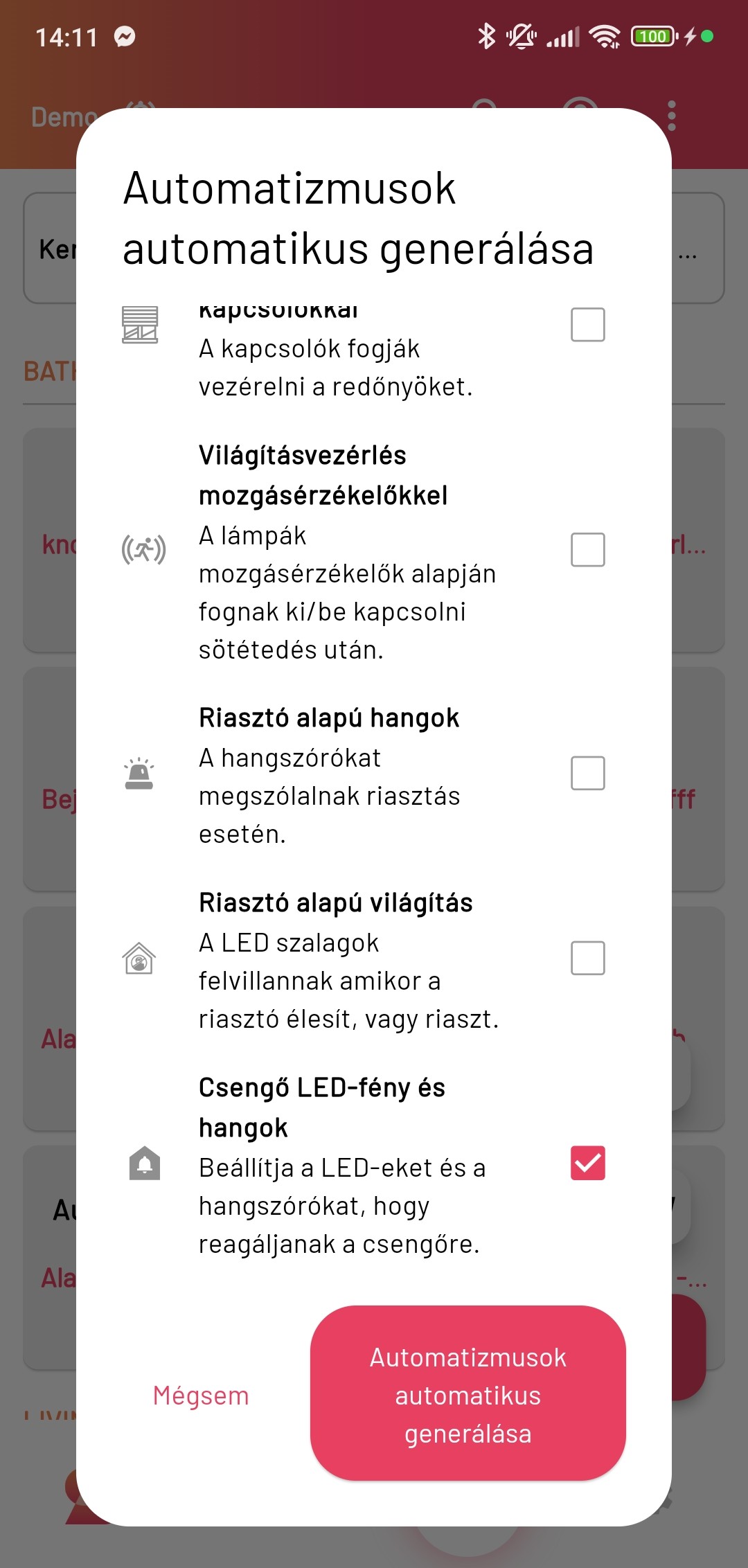
These automations listen for a condition named "Doorbell ringing". For this condition to be true, we need to create a custom automation whose reaction is "Activate doorbell".
This can be any condition; in this example the doorbell will activate if someone long-presses a button. We can do this as follows:
- In the bottom menu bar of the app, tap the Automations menu item.
- Pressing the + button in the bottom-right corner shows a menu; there we select the Create automation option.
- This navigates us to the Create automations page. Here we can give it a name, for example "Turn on entrance doorbell".
- Then in the If section we select the Device condition and select the device on whose press we want the doorbell to sound. For example a button placed at the entrance; in this example it appears under the name "button". Then we must select from the button’s parameter list the one we like (e.g. double press, single press, etc.). Now we select "long press".
- After we are done with this, in the Then section we select the required reaction, for example the Activate doorbell option. We can also specify whether the doorbell should take a photo on a ring, if the device is capable of this.
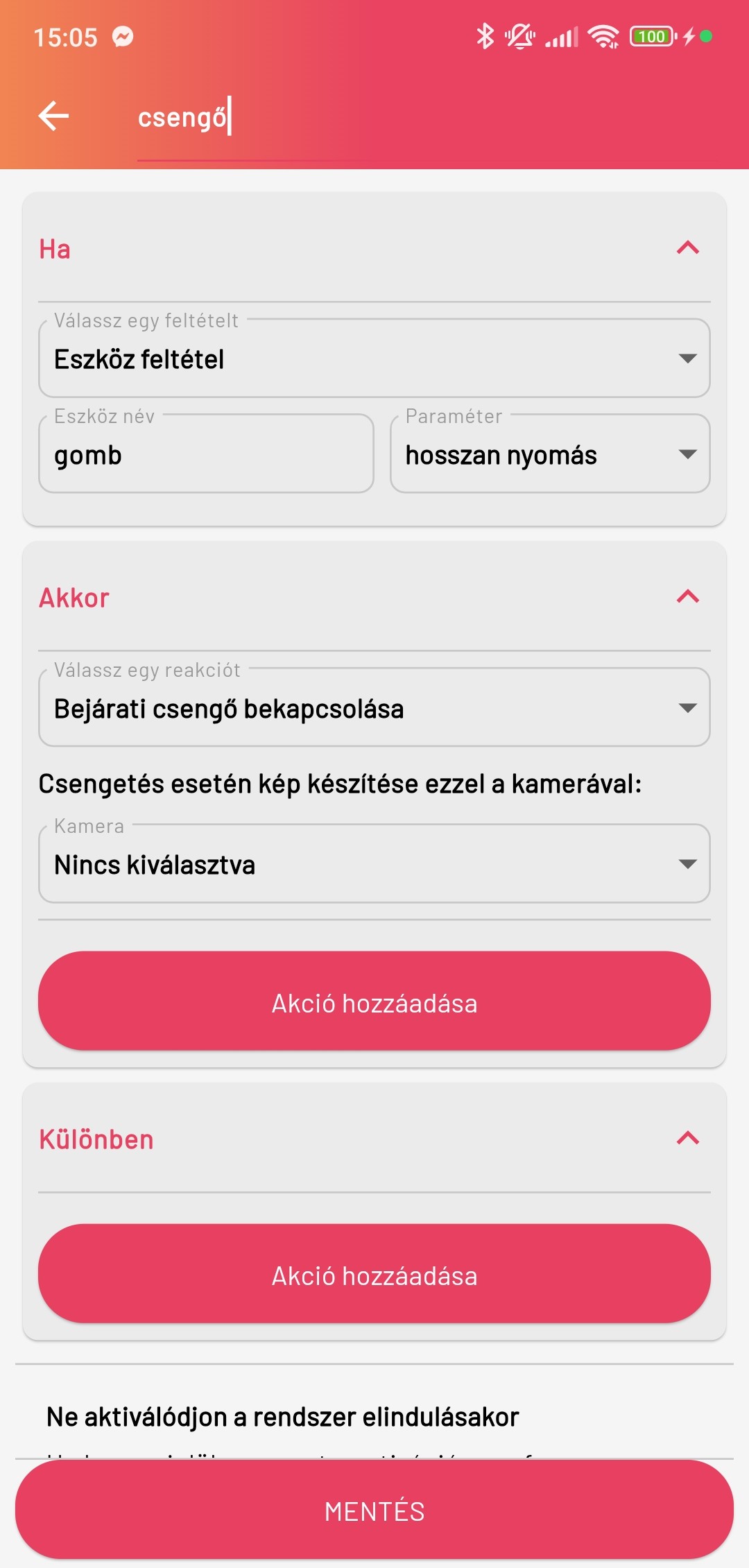
- After that we can save the automation by tapping the Save button.