Automations
Automations are one of the most important features of the Smartive app, letting users create and manage automated processes in the system. With Automations you can set actions tied to various events and conditions, so the system can react intelligently to environmental changes or user interactions.
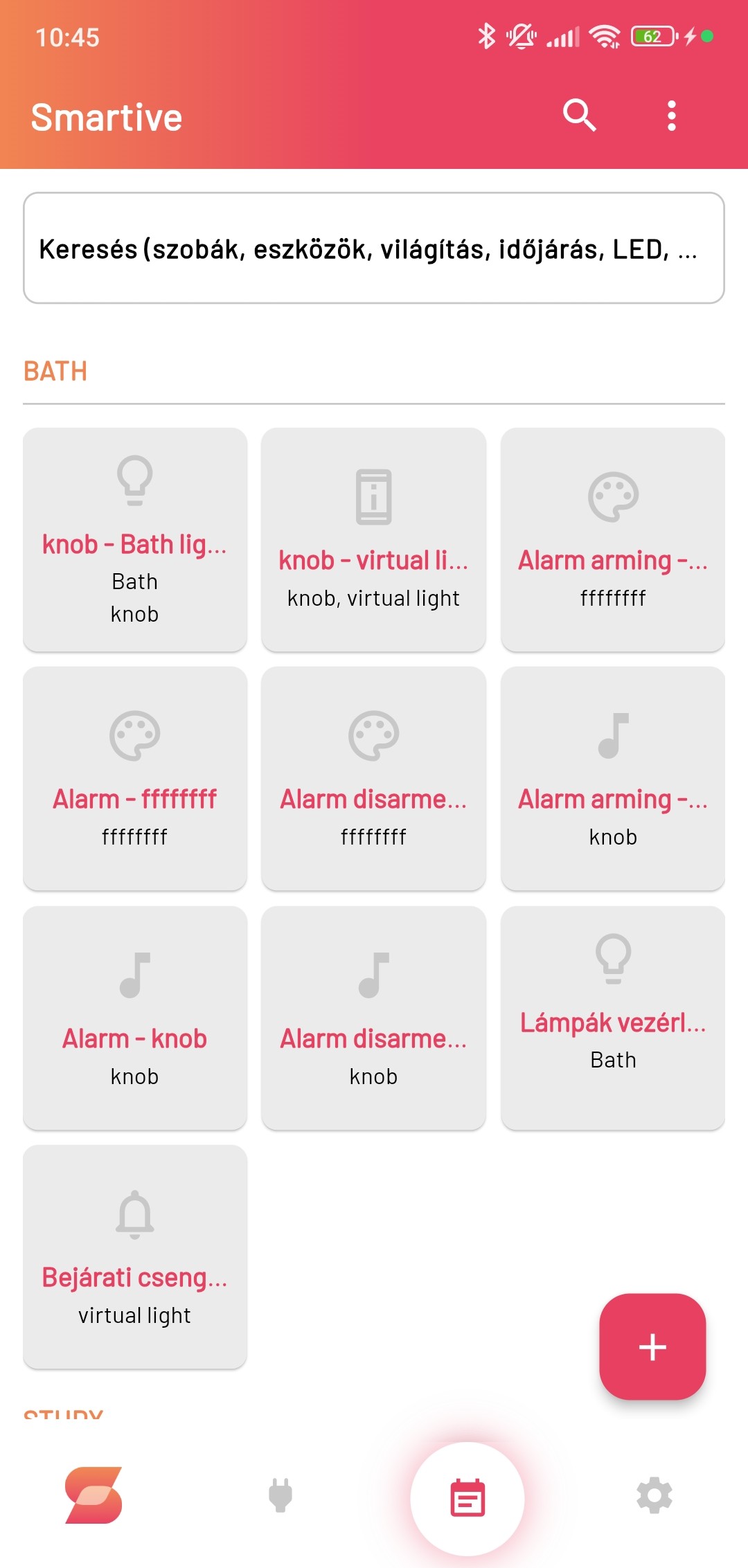
The page has a search field where you can search among automations by keywords. Below that, broken down by rooms, you find the automations assigned to the given room; tapping them opens the editor, where you can modify the given automation.
Pressing the + button in the bottom-right corner shows a menu with 2 options:
Create automation: Pressing this button navigates Smartive to the Create automations page, where you can give the new automation a name, then in an If - Then - Else structure you can set which device reacts how to a given condition. In addition you can select that the automation should not activate when the system starts, and that it should only be active in Auto mode.
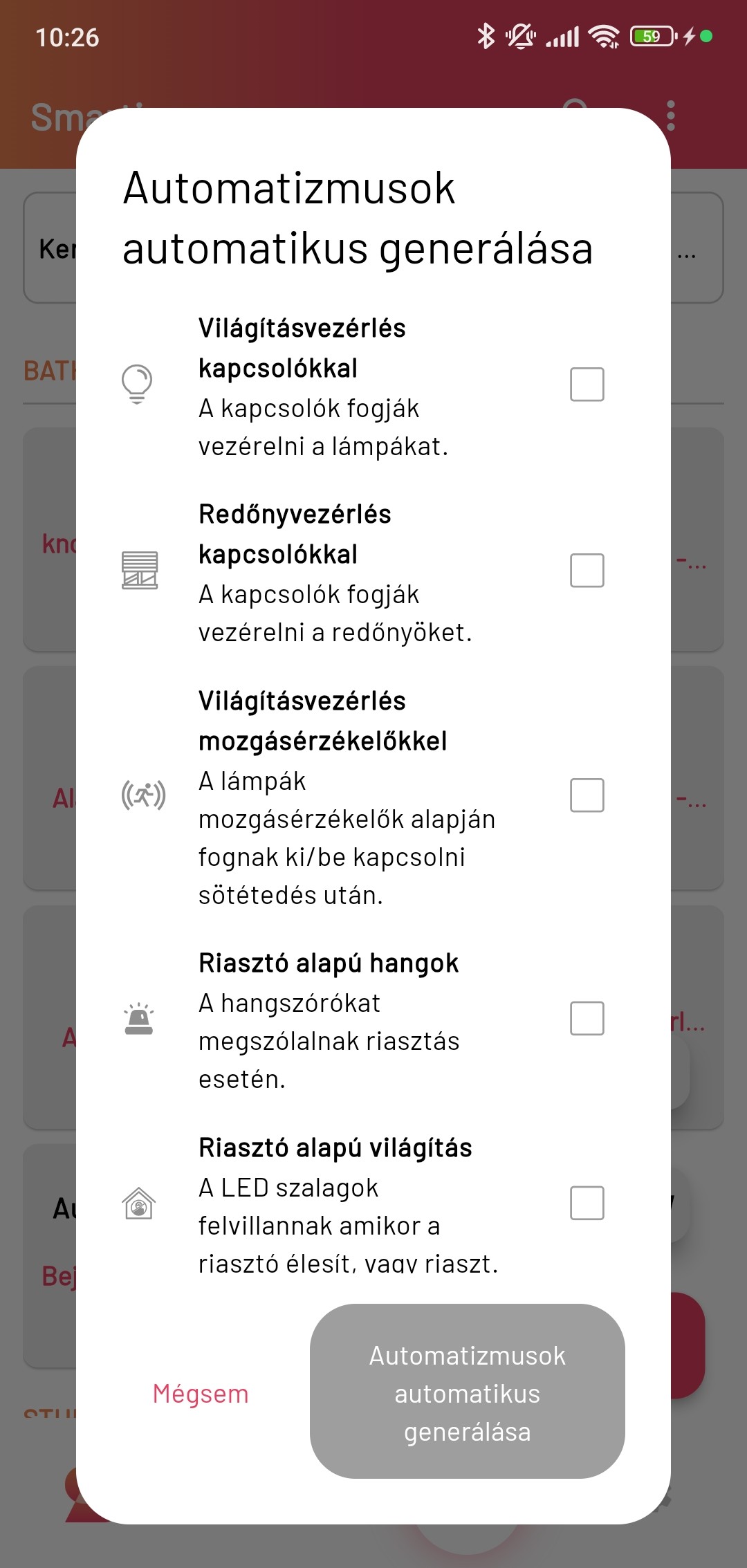
Automatically generate automations: Pressing this button opens a window where you can choose from predefined, frequently used automations. Several can even be generated at once. These are as follows:
- Lighting control with a switch: The switches will control the lighting.
- Shutter control with a switch: The switches will control the shutters.
- Lighting control with a motion sensor: The lighting will turn on/off based on motion sensors after dark.
- Alarm-based sounds: The speakers sound in case of an alarm.
- Alarm-based lighting: The LED strips flash when the alarm is armed or alarms.
- Doorbell LED light and sounds: Sets the LEDs and speakers to react to the doorbell.
Conditions you can choose when creating an automation:
- Alarm: Arming, disarming and alarming.
- Logical And: Two or more conditions being met.
- Doorbell: Pressing the doorbell.
- Location: A location change, for example home or away.
- Date: Under development.
- Delay: You can set a time order with it (e.g. two motion sensors detecting one after the other).
- Device: A change in a given device’s state, for example a switch turning on or off.
- Email: Arrival of an email
- GitLab: A GitLab event, for example a new commit or creating an issue.
- Heating: A change in the thermostat state, for example heating turning on or off.
- Irrigation: A change in the irrigation system state, for example starting or stopping watering.
- Motion: Detection by a motion sensor.
- Logical Not: Negation of another logical condition (And or Or).
- Logical Or: At least one of two or more conditions being met.
- Presence: Presence detection, for example someone standing in front of the sensor right now.
- Stock market: A change in a stock price, for example a given share’s price rising or falling.
- Temperature: A temperature change, for example crossing a given temperature threshold.
- Time: When a given time is reached.
- Always: This is typically used when the then clause contains a dynamic expression.
- Weather: For example related to brightness or the amount of cloud cover.
Reactions you can choose when creating an automation:
- Do nothing: With this reaction the automation does not perform any action.
- Take a photo: The system takes a photo with the selected camera.
- Control Android device: Turning the screen of Android devices connected to Smartive, for example smartphones, on or off. On the device to be controlled, Real-time notifications must be turned on in the Smartive Settings menu.
- Dim lights: Setting lamp brightness.
- Control LED strip: Setting LED strip colour, brightness and animation.
- Control lights: Turning lamps on or off.
- Control shutter: Raising or lowering shutters.
- Delay: Delaying the reaction for a given duration.
- Switch Auto mode: Switching the room into Auto mode or turning it off.
- Control device: Turning a given device on or off, for example an LED or lamp.
- Music: Under development.
- Send notification: Sending a notification to the user.
- Play sound: Playing a sound on the system speaker. You must specify the device that plays it, the melody and the number of repeats.
- Turn on entrance doorbell: On a ring, takes a picture with the selected camera.
- Control alarm: Arming or disarming the alarm.
- Set colour: Setting the colour of the lamps in a given room.
- Set Knob: Setting the selected knob.
- Set thermostat: Setting the thermostat of the selected room.
- Start scene: Starting a scene in a given room.
Dynamic expressions in automations:
outsideTemperature (Celsius): Retrieves the outdoor temperature in Celsius.
outsideBrightness (0.0 - 1.0): Retrieves the outdoor brightness.
motion(roomId?): True if motion was detected in the specified room.
temperature(roomId?): Retrieves the temperature of the specified room.
thermostatTemperature (roomId?): Retrieves the temperature measured by the specified room’s thermostat.
lightOnPercentage (roomId?): The percentage of lamps in the specified room that are on (0.0 - 1.0).
(roomId?): The brightness percentage of the lamps in the specified room (0.0 - 1.0).
shutterPercentage (roomId?): The open state of the specified room’s shutters as a percentage (0.0 - 1.0).
currentPowerGenerationKw: The system’s current power generation in kW.
todayPowerGenerationKwh: The system’s daily power generation in kWh.
heatingOn: True if the specified room’s heating is on.
stockPrice(symbol): The price of the specified stock.
knob (deviceId, knobIndex): The current value of the specified knob.
knobColor (deviceId, knobIndex): The current colour of the specified knob.
currentSceneIndex (roomId): The index of the specified room’s current scene.